

Termite: a simple RS232 terminal
Screen-shot of the Termite utility
Termite is an easy to use and easy to configure RS232 terminal. It uses an interface similar to that of "messenger" or "chat" programs, with a large window that contains all received data and an edit line for typing in strings to transmit. Highlights of the utility are the ease of installation (possibly with pre-configured settings) using a heuristic search for the appropriate COM port and, as was mentioned, its user-friendliness.
Other features are:
- Plug-in interface for pre-processing or alternative views of the data, logging received data to a file, adding a toolbar to Termite, keyboard macros, and other functionality that you may think of.
- A history of commands that you typed, with auto-completion.
- Resizeable main window, with a "keep window on top" option, multilingual user interface.
- Ability to run with pre-configured settings from a read-only medium (no installation is necessary).
- Support for non-standard Baud rates (MIDI, DMX512).
- Different colouring for transmitted and received data (blue=transmitted, green=received).
- Data can be forwarded between two RS232 ports.
- Search dialog for transmitted/received text (right-click pop-up menu).
- Save or print the contents of the transmitted/received text (right-click pop-up menu).
Downloads & license
Termite 3.4 is copyrighted software that is free for personal and commercial use. You may use it and distribute it without limitations. You may however not remove or conceal the copyright. There are no guarantees or warranties whatsoever; use it at your own risk.
The example plug-in filters are distributed under the zlib/libpng (open source) license.
- Termite version 3.4 - complete setup (332 KiB)
- A self-extracting setup that contains Termite and all plug-ins and documentation (but excluding the source code for these plug-ins). This setup is provided to conveniently and quickly install Termite. (Note that Termite does not require installation, but it may just be convenient to do so.)
- Termite version 3.4 (program only) (76 KiB)
- Termite RS232 terminal in a ZIP archive. Just unzip and run; Termite writes nothing in the registry, no installation or uninstallation is required.
- GNU Unifont as a TrueType file (3.2 MiB)
- The GNU Unifont allows showing control characters as characters, rather than as hexadecimal digits between brackets. No installation of this font is needed; just unzip the font into the same directory as where Termite resides.
- "Time stamp" filter, including source code (36 KiB)
- A filter that adds a time-stamp to received data. For those who want to write their custom plug-in filter(s), the commented source code that this ZIP file also contains may serve as a starting point.
- "Hexadecimal View" filter, including source code (32 KiB)
- A filter that shows the received data as a hex dump instead of as plain text, and that also allows you to send non-ASCII bytes by typing hexadecimal values on the transmit line. This ZIP file contains a compiled filter as well as commented source.
- "Highlight" filter, including source code (41 KiB)
- A filter that shows any received text that matches one of several patterns in a different (user-selectable) colour. The patterns are regular expressions. This ZIP file contains a compiled filter as well as commented source. It uses the SLRE library for matching regular expressions. The source code for the SLRE library is not included in the above ZIP file, and must be downloaded separately.
- "Status LEDs" filter, including source code (27 KiB)
- This plug-in filter shows the status of the auxiliary modem and handshaking lines (CTS, DSR, RI and CD) and it allows you to toggle the RTS and DTR lines. The ZIP file contains a compiled filter as well as commented source code.
- "Log file" filter, including source code (34 KiB)
- This plug-in filter writes all data that it receives to a log file (new data is appended to existing data). The ZIP file contains a compiled filter as well as commented source code and project files for Microsoft Visual Studio.
- "Function Key macros" filter, including source code (28 KiB)
- This plug-in filter transmits a user-defined string of text on the press of a function key (keys F1 to F12 are currently supported). The ZIP file contains a compiled filter as well as commented source code.
- "Automatic Reply" filter, including source code (48 KiB)
- This plug-in filter checks the incoming text or data for keywords or patterns. When it detects such a pattern, it automatically transmits a user-defined reply. The "pattern" used for matching is regular expression. A series of such match/reply rows can be used to handle a simple handshake protocol. The ZIP file contains a compiled filter as well as commented source code. This filter uses the SLRE library for matching regular expressions. The source code for the SLRE library is not included in the above ZIP file, and must be downloaded separately.
- Writing plug-in filters for Termite (124 KiB)
- Programmer's documentation (Adobe Acrobat format).
- Translating Termite (92 KiB)
- A guide to add a translation of the user interface of Termite (Adobe Acrobat format).
Recent changes (version 3.4)
- Bug fix in handling the backspace character in received text.
- Bug fixes in handling the display of forwarded data (received data that is re-transmitted on a second port).
- The time-stamp filter now has a setting to time-stamp every new line (instead of only time-stamping after a minimum delay has been passed).
- The documentation for writing plug-in filters has been updated.
Usage
Termite focuses on text data, and specifically text that is sent and received as strings terminated with "new-line" characters. It has no provisions for transferring files or binary data. (That said, with the "hexadecimal view" plug-in, you can send and receive bytes as hexadecimal values, and you may write a "plug-in" filter for file transfer as well).
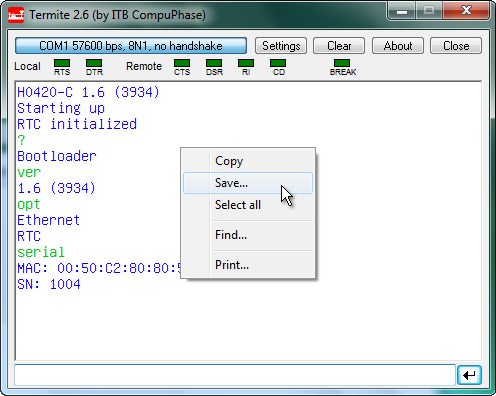
The user interface of Termite, here pictured with the "Status LEDs" plug-in active
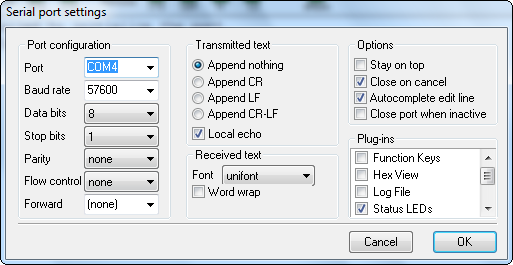
The interface of the Termite program has one large (initially empty) text area, which is called the "reception view". Above it is a set of buttons in a "button bar" and below it is a "transmit" line into which you can type a line of text. The utility automatically opens the RS232 port for which it was set up. It shows the current configuration at the left in the button bar. If these are not correct, you can use the button Settings to choose a different port or configuration. The Settings dialog also allows you to enable/disable "local echo" and/or to append a line termination to every string that you send.
Received bytes with values below ASCII 32 (the space character) are displayed as either a control character like, or as two hex characters between square brackets. So
[08]stands for the "backspace" character and[1B]is the Escape key. There is an exception for the tab, carriage return and line feed characters (ASCII 9, 13 and 10 respectively); these cause spacing (tab) or a line break.
Whether you see the control character[08]for the backspace key, depends on whether the "Unifont" font is present and configured in the settings.
If you wish to send a non-ANSI/ASCII character, you need the "hexadecimal view" plug-in filter, see "Downloads" above.
After connecting a serial cable between the PC and the remote device (or remote PC, in which case you must use a null-modem cable) and configuring the port, you can send data by typing text in the transmit line and pressing the "Enter" key. Any data that the remote device sends, will appear in the reception view. Optionally, the text that you transmit is copied to the reception view (the option is called "local echo", you will find in in the dialog under the Settings button). To distinguish the received data from the echoed data, the echoed text is coloured blue, whereas the received data is green.
The remaining functionality is straightforward: the Clear button clears the reception view, the About button gives copyright information and the Close button terminates the utility.
One "hidden" feature is the ability to disconnect the RS232 port, without terminating the utility. You can close an RS232 connection with a click in the status field in the upper left corner of the window (left of the button bar). Another click on that line re-opens the connection with the current settings. You can use this to "free" the port temporarily for another application.
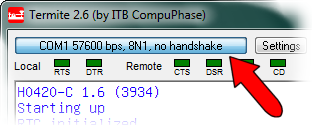
Click here to disconnect, or re-connect
Edit history
To speed up entering repetitive commands, Termite keeps a history of recently sent commands. This history is in a circular queue with the most recent command at the top.
To browse through the history, use the "arrow up" and "arrow down" keys. If you type in a few characters in the "transmit" edit line, Termite will use the history to auto-complete the entry. Pressing the arrow up and arrow down keys then browse through the entries that match in the first letters. For example, if you have sent the words "test", "top", "view" and "set" previously, and you type the letter "t" on the edit line, Termite will first auto-complete this to either "test" or "top" (depending on which word you sent last) and the arrow keys will toggle between "test" and "top". If you clear the edit line and then use the arrow keys, Termite will loop through the entire history of "test", "top", "view" and "set".
Auto-completion and history matching are case sensitive, by the way.
Auto-completion is enabled by default, but can be disabled through the Settings dialog.
Scrolling
By default, Termite scrolls its reception window so that the most recently received text is displayed. In case you want to look back at text that has scrolled out of the reception view, just scroll the text back into view. Termite will stop to scroll to the end every time it receives new data.
To make Termite restart with its automatic scrolling to newly received data, scroll the reception view manually to the end of the data.
In other words, Termite only scrolls up text to show newly received data if it is already at the end of the current data.
Printing, searching text, clipboard support
Some additional functions are available from a pop-up menu that appears when you right-click in the reception view.
The "Copy" command copies only the selected text to the clipboard if a selection exists, and copies all text in absense of a selection. Likewise, the "Save" command saves only the selected text to a file if a selection exists (and all text if no selection exists).
Configuration
Termite stores the configuration in an INI file (see the next section for the location of the INI file). This way, Termite remembers its settings between sessions.
When distributing Termite, you may wish to include an INI file with pre-sets. You can run Termite directly off a CD-ROM, but the utility will not be able to store its configuration in the INI file if the INI file resides on a read-only medium. A typical INI file is below.
[Settings]
Port=1
Baud=57600
DataBits=8
StopBits=1
Parity=0
Handshake=0

[Options]
LocalEcho=1
AppendLine=2
Topmost=0
Monospaced=0
Most of these settings can be chosen from the "Settings" dialog. This means that to get an appropriate INI file, you can launch Termite, adjust the settings (including activating any plug-in filters that you wish to use), and voilà: you have your pre-configured INI file.
A few more configurations can be done by editing the INI file directly (using a
text editor like Notepad). These are the keywords Caption,
TxColour and RxColour in the [Options]
topic. The Caption item allows you to change the title
bar of the main Termite window. Add the item Caption (below topic
[Options]) and set it to the string that you wish to have displayed
—for example, the model name of the product for which you are distributing a
pre-configured Termite. The items TxColour and RxColour
allow you to change the colours for transmitted and received text (from the default
blue and green respectively). The syntax for the colours must be #rrggbb,
where rr, gg and bb are two hexadecimal
digits. So for example, #FF0000 is bright red and #808000
is dark yellow.
INI file location
Termite accesses the INI file from one of two directories, depending on the start-up situation.
- Termite first tries to locate a file called "Termite.ini" in the application directory (i.e. the directory that the Termite ".EXE" file resides in). If it can open (or create) "Termite.ini" in the application directory for read/write access, it uses that file.
-
If either the application directory does not permit read/write access (e.g.
Termite is launched directly from a read-only medium), or the Termite.ini file
is marked "read-only", Termite creates a directory under the "Application Data"
folder of the current user's "Local Settings". This new directory is called
"Termite", and the INI file is stored there.
The first time Termite uses the sub-folder below the current user's Local Settings, it also copies the "Termite.ini" file from Termite's application directory (if it exists). This allows one to store pre-configured INI file on a CD-ROM disk and still allow the user to change the configuration.
RS232 port scan
Most RS232 settings for a device can be chosen by the developer (the Baud rate and the number of data and stop bits are usually determined by the other device). One setting that the developer cannot foresee, however, is what COM port the user will attach it to. For this reason, Termite contains a "port lookup" function plus a simple "port scanning" protocol.
The "port lookup" function only works with virtual COM ports, such as USB-to-serial
cables. Since Microsoft Windows has drivers pre-installed for USB devices simulating
a serial port, it is a popular design. To use the port lookup function,
put the complete device name of the virtual COM port at the "Port="
setting. You can find the device names in the registry below the path
"HKEY_LOCAL_MACHINE\HARDWARE\DEVICEMAP\SERIALCOMM".
For example, for a common Prolific USB-to-serial cable, the setting in the INI
file might read:
Port=\Device\ProlificSerial2
If using the device name of a serial port is not an option, for example, because
your hardware has a real serial port instead of a virtual one, you can
alternatively use the "port scanning" protocol. To activate this protocol, set
"Port=0" below the "[Settings]" section. Port scanning
chooses the first port for which the two following conditions hold:
- the port is not already open (in use);
-
after setting the
DTRline, the remote device pullsDSRup.
Port scanning cannot be selected from the Settings dialog, you have to edit the INI file to activate it.
The tests for port scanning are primitive. They do not check what device or program is hooked at the other end. The only thing that you know after a port scan is that something is connected to the port and that no other program is currently using that particular port.
In the old days, it had become common practice to connect the DTR
and DSR pins in the connectors of the cable (sometimes even at
both ends). This is bad practice, because with such cables you cannot even
diagnose cable connection problems. Yet, such cables still exist, and the port
scan may be fooled by it.
The DRT/DSR handshake usually works with USB-to-RS232 converter cables too.
Non-standard Baud rates
The MIDI protocol is essentially the RS232 protocol over a current-loop physical layer and with a Baud rate of 31250 bps —for details, see the article "A MIDI to RS232 adapter".
Likewise, DMX512 is essentially the RS232 protocol over an RS485 physical layer and with a Baud rate of 250,000 bps.
Termite presents you with a list of standard Baud rates, but it allows you to enter different values. The key issue is that the RS232 hardware must support the Baud rate that you select. All RS232 hardware and all USB-to-RS232 converter plugs support the standard Baud rates, but only few support non-standard Baud rates. We have tested non-standard Baud rates successfully with USB-to-RS232 converters based on the FT232R chips from FTDI.
Forwarding data between two RS232 (virtual) ports
You can use Termite to put a PC (or laptop) between two systems and monitor their RS232 communication. The PC or laptop that Termite runs on must have two RS232 ports. Instead of connecting both systems together, you connect both with the PC that runs Termite. Then, you have to choose one port as the primary port and the other as the "forward" port, see the Settings dialog of Termite.
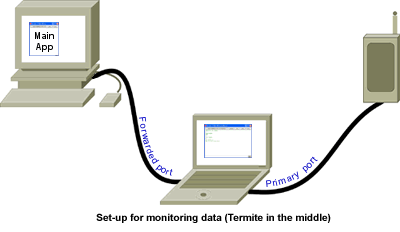
With forwarding set up, all data received on the primary port is transmitted through the forward port. All data received on the forward port is transmitted through the primary port. The "sent/received colouring" of Termite is also still in effect: data received on the primary port is in green and data received on the secondary port is in blue.
In this configuration, Termite would typically only be used to monitor the communication between two devices. If you type in text on the edit line and transmit it, this text is only sent through the primary port.
In the above diagram, Termite runs on a computer that sits between two other systems/devices. If one of these systems is also a computer (running Microsoft Windows), the set-up may be simplified by running Termite on that system. The dual RS232 port needed for Termite may be replaced by a virtual COM port pair, such as the com0com null-modem emulator.

A virtual null-modem creates two ports that exist only in software. Any data presented to one port of this pair is retransmitted at the other port —the same as how port forwarding works in Termite. If you connect an application to one port of the pair and Termite to the other port, the application now talks to Termite. When Termite is then configured to forward transmitted/received data to a physical port (to which the other system is connected), the two systems communicate as before and Termite intercepts all data.
Filters (plug-ins)
Plug-in filters allow you to extend Termite in several ways:
- Append or insert text or data to what is received (for example, the "timestamp" sample filter inserts the relative time of reception to every packet of data that Termite receives).
- Remove received data from Termite's queue (before Termite processes it), for example to automatically dump it to a file or to process it separately.
- Create windows with different views of the received data. In combination with the ability to remove data from Termite's queue, this allows you to filter out different kinds of data from a complex stream, and display each kind in its own way.
- Handle function keys (for short-cuts or user-defined macros).
On start-up, Termite collects all plug-in filters that are in the same directory as the Termite application itself. You can enable and disable a filter in the Settings dialog of Termite (see above). Installing a filter is therefore a mere matter of copying the file to the correct location and enabling it.
Optionally, filters may have their own configuration options. Termite launches the filter's configuration dialog when the filter is enabled. To access the configuration dialog of a filter that is already enabled, double-click on the filter name (you must double-click on the name, not on the "check box"). Typically, a filter stores its configuration in the same INI file as the one Termite uses (Termite passes the path to this INI file to the filter when it loads the filter).
Technically, a filter is a DLL with a few special functions (of which only one is mandatory). The filename extension must be ".flt" instead of ".dll" for a filter. In the Settings dialog, Termite uses the filename minus the ".flt" extension for the filter name. See the short document Writing plug-in filters for Termite for details on writing filters. To get you started, the sample filters "Timestamp", "Hexadecimal View" and "Status LEDs" come with full commented C source code.
Translating Termite
If you wish to translate Termite (or correct translations), first get the document "How to translate Termite". The process is simple, and requires only a simple text editor.
If you wish, you can send the translated files to us (we will gladly accept them). Note that by sending us your translations, you license us to include them in future versions of Termite.
Rationale and alternatives
I made Termite because I needed a utility for monitoring RS232 data coming from the hardware devices that we develop. We do that in-house, but devices regularly need to be monitored after installation... at a customers site... by our customers. Therefore, my design requirements were for the utility to be easy to set up, to run "out of the box" with preconfigured settings, and to run directly from a CD-ROM or USB stick without requiring installation.
Over time, I added features that were needed for specific communication requirements that we stumbled upon, such as non-standard Baud rates, port forwarding, time-stamping received data and sending/receiving hexadecimal values. The last two items were later removed from the utility itself, for the sake of keeping the basic utility simple, and added back as plug-in filters.
In case Termite is not what you are looking for, some alternatives are:
- The Serial Port Monitor by Eltima Software has the ability to sniff communication from another program (without requiring a special cable) and the ability to monitor multiple serial ports at the same time. Serial Port Monitor handles RS485/422 as well as RS232, and supports Modbus RTU and Modbus ASCII protocols.
- The HyperTerminal applet that comes with Microsoft Windows, or the third-party HyperTerminal Private Edition.
- MCS Electronics provides the free "simpleterm" utility amongst its downloads. (Choose "Downloads", then "BASCOM". Then select the "MCS Simple Terminal" from the list.)
- YAT, two freeware serial terminals are listed on the site of Lakeview Research: a small and simple terminal by Dieter Fauth and a full-featured terminal by Maettu.
- "Terminal" by Br@y++, a free terminal that supports text and hexadecimal display, macros, scripting, graphic visualization and more.
- "Termie", which started as an open-source clone of Termite, but now has some features that Termite lacks, while lacking some of Termite's features.

|